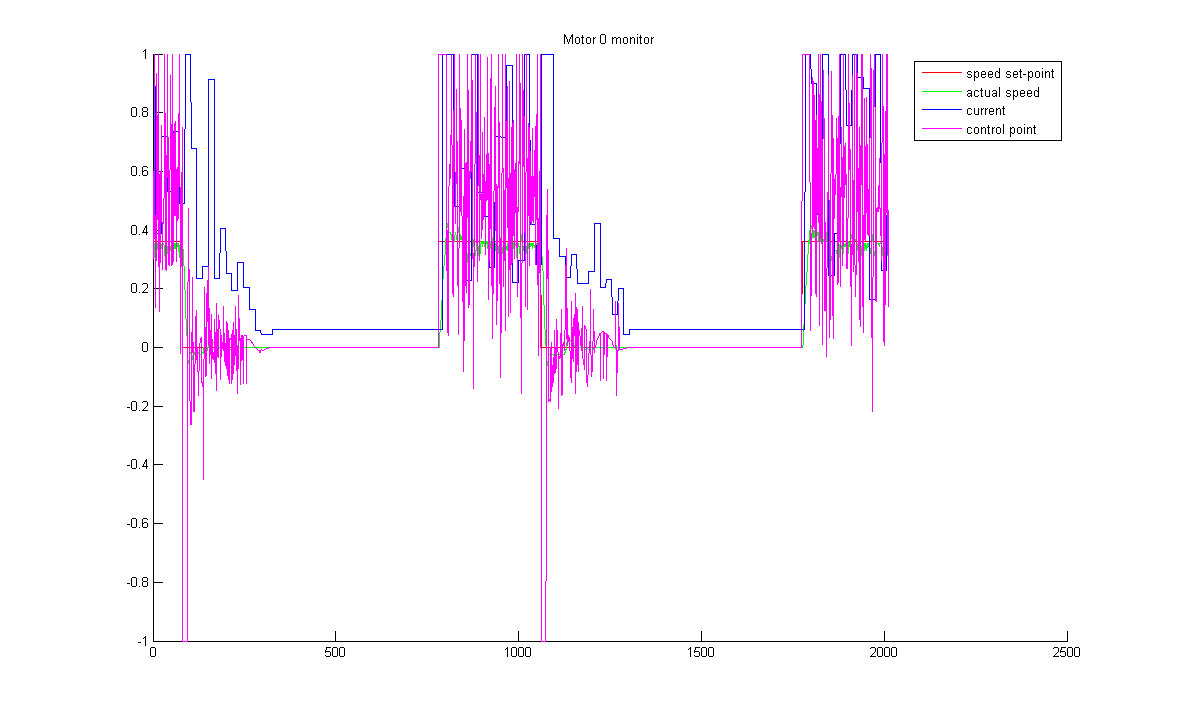
This chapter describes how to monitor a single motor with MatLab while controlling Robotino with Robotino View. The control path is what is called Method A in the overview of control paths. In addition the EA09 is configured to send values like speed set-point and actual speed via Ethernet to MatLab at a rate of 1kHz.
The first thing to do is to change the current working directory to the directory containing the m-Files interfacing the ea09com C library.
>> cd ( [ getenv('EA09_DIR') '/matlab' ] )
You can check wether this worked or not by printing the current working directory
>> cd
C:\Programme\Festo\EA09\matlab
Now call the ea09com_init command which is implemented in init.m. This command loads the ea09com.dll providing the functionality used.
>> ea09com_init
ea09com.dll loaded.
ans =
1
Now you have to setup a UDP server on an arbitrary port to receive data from the EA09. This is done by the ea09com_bind command. Its single argument is the port number.
>> ea09com_bind( 8809 )
ans =
1
You might see a warning message from Windows firewall here.

Chose "Do not block" to allow Matlab to receive messages from EA09 on port 8809 or the number you specified.
You now established a UDP server at port 8809. If this command fails use a different port number. A failure indicates that the port is already used by another service. Do not forget to call close at the end of the session in order to shutdown the UDP server and to free the UDP port.
Now tell the ea09com library at which IP address and UDP port the EA09 board is listening.
>> ea09com_setAddress( 172.26.254.254', 8809 )
ans =
1
Now you have to ask EA09 for its firmware version. This is done by sending a RFV (request firmware version) message. By requesting the firmware version you also register yourself as a receiver of monitoring messages.
>> send_RFV
ans =
1
If everything worked a expected the EA09 answered with a FV (firmware version) message. In order to process received data we have to call ea09com_update.
ans =
10
The returned value of ea09com_update is the number of received messages since the last call to ea09com_update. We received 10 messages. The EA09 not only sends a single FV message, but also one SetCOMCTRL message and one SetMCTRL plus one SetMMONITOR message for each of the four motors. Thus we have 10 messages in the receive buffer.
We can now check if a FV message had been received by looking at the numbers of FV messages in the receive buffer.
>> num_FV
ans =
1
We have one FV message in the receive buffer so we are going to remove the message from the receive buffer and print the firmware version.
>> takeFirst_FV
ans =
EA09 Feb 23 2009 16:31:42
We are not interested in the SetCOMCTRL, SetMCTRL and SetMMONITOR messages at this point. Therefore we clear the corresponding buffers with the command:
ans =
1
Everything is working. Now we can start with the real thing. At first we are setting the EA09 in monitor mode for motor 0.
>> send_SetMMONITOR( 0, 1 )
ans =
1
The EA09 honors the reception of a SetMMONITOR message by sending a SetMMONITOR with the new value of the MxMONITOR register. A call to ea09com_update tells us that we received
>> ea09com_update
ans =
3126
3126 messages so far. We received
ans =
1
one SetMMONITOR message (the answer to our previous call of send_SetMMONITOR) and
>> num_MessageA(0)
ans =
3125
MessageA messages for motor 0 containing the motor sensor readings.
To receive 10000 messages (which corresponds to a time range of 2s) we do the following:
>> numReceived = 0
numReceived =
0
>> while( numReceived < 10000 )
numReceived = numReceived + ea09com_update
end;
numReceived =
2624
...
numReceived =
10002
We now have 10002 MessageA messages of motor 0 in the message buffer. We can take them out one by one using takeFirst_MessageA and plot a graph showing time against speed set-point, actual speed, current and control point.
To stop EA09 sending monitor messages, we write 0 to the M0MONITOR register.
>> send_SetMMONITOR( 0, 0 );
Now we take the first MessageA in the buffer for motor 0 to determine the start time.
>> messageA = takeFirst_MessageA(0);
>> index = 1;
>> startTime = messageA(2);
Then we take out the first message in the buffer until the buffer is empty.
>> while( [num_MessageA(0)] > 0 )
messageA = takeFirst_MessageA(0);
ea09time(index) = messageA(2) - startTime;
speed_setpoint(index) = messageA(3);
actual_speed(index) = messageA(4);
current(index) = messageA(5);
control_point(index) = messageA(6);
index = index + 1;
end;
We close the connection.
>> ea09com_close;
>> title('Motor 0 monitor');
>> hold;
>> plot( ea09time, speed_setpoint / 255, 'Color', [1 0 0] );
>> plot( ea09time, actual_speed / 255, 'Color', [0 1 0] );
>> plot( ea09time, current / 4096, 'Color', [0 0 1] );
>> plot( ea09time, control_point / 255, 'Color', [1 0 1] );
>> legend( 'speed set-point', 'actual speed', 'current', 'control point' );
>> hold;